

Connect model sources to HiRoute with headless Magpie
Run Magpie in the background to bring the models your Qoder or WorkBuddy account offers into HiRoute. Magpie handles sign-in and serves the local model API. In HiRoute, choose the model groups, route by difficulty and bind an execution Agent.
1. Start the background gateway
Follow the Magpie setup guide to install the CLI on the same host as the HiRoute service. On macOS or Linux with systemd, install and check the user service:
magpie daemon install --no-web
magpie daemon status
If the installed service is stopped, run magpie daemon start. For a quick trial, run magpie serve in a terminal. The default address is http://127.0.0.1:3425. Check the status output for yours. If you came from an Agent tutorial, return there to sign in to your account.
2. Read the model catalog
Once you've authorized your model source, read the model IDs from the local gateway:
curl -fsS http://127.0.0.1:3425/v1/models \
  -H 'Authorization: Bearer magpie'
Use your own address or gateway key if you changed either. Keep the prefix in each model ID, such as qoder/dfmodel, and choose models listed for your account. See the Magpie community plugin catalog for more sources.
3. Save the Magpie API in HiRoute
Open Models → General models → Add models → New API connection, then select Custom API:
| Field | What to enter |
|---|---|
| Connection name | For example, “Local Magpie” |
| API base URL | http://127.0.0.1:3425/v1, or your actual address |
| Protocol | Select an available API. Start with Responses for the Pi/Codex CLI examples here. If you also use Chat Completions, you can save a separate connection to the same address |
| API key | magpie for the default local gateway, or the key you configured |
| Models | Check the connection, then pick models from the catalog or enter their complete IDs |
If the catalog does not appear, set the model directory path to /v1/models in Advanced settings and check again. You can also enter IDs from the catalog with Edit models manually.
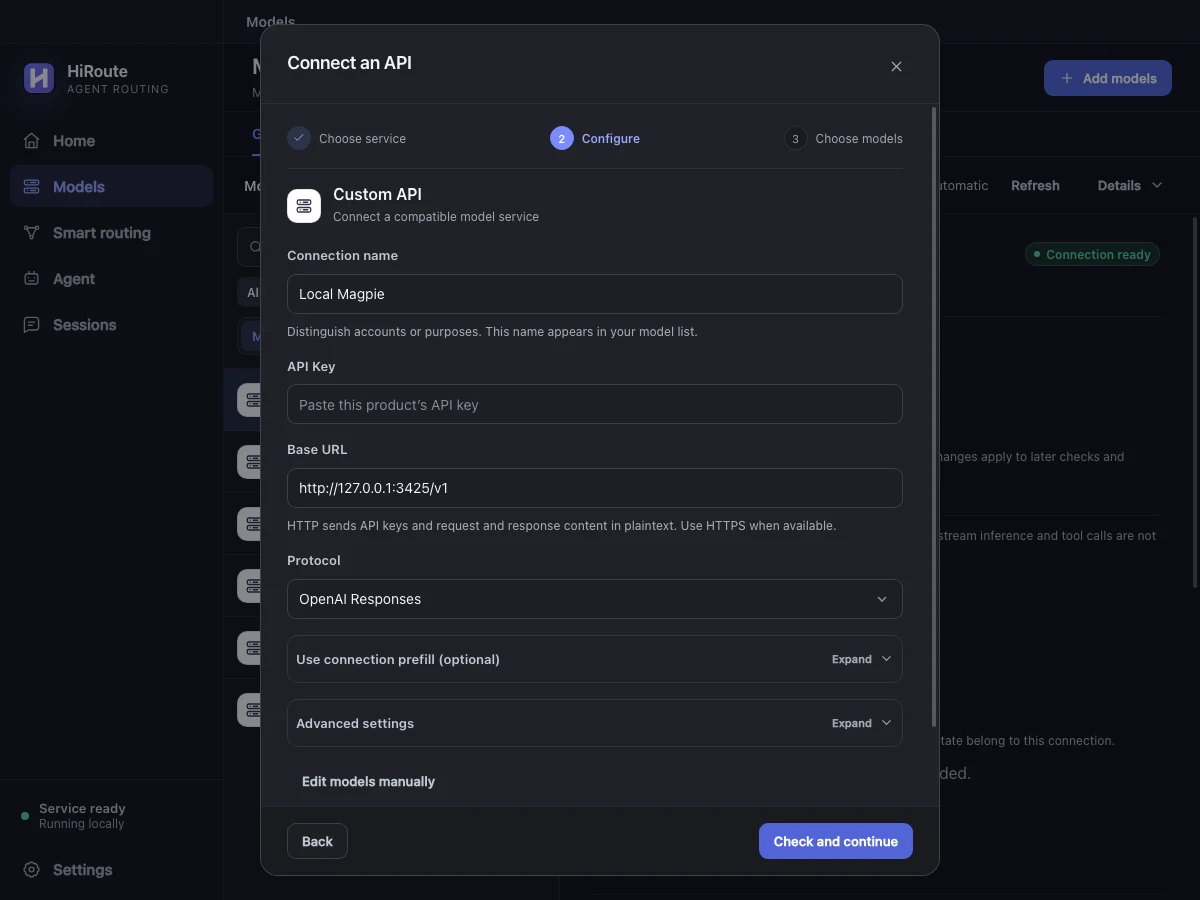
If a supported Codex or Hermes configuration already points at Magpie, try Scan this device and import the matching connection after checking it. If the scan finds nothing, add the API directly. When configuring from a remote browser, 127.0.0.1 means the host running the HiRoute service.
Next, set up Regular and Primary models or choose your Agent's walkthrough.