

DeepSeek Harness model routing for Web and Desktop
Keep the DeepSeek Harness workflow. Use a fast model for straightforward questions and a primary model for deeper analysis. Add a route to DSH Web or Desktop, or have another Agent delegate work to DSH.
Download HiRoute · Browse Agent guides
1. Scan or sign in to get models · 2. Configure smart routing · 3. Connect your Agent · 4. Explore task delegation
1. Scan or sign in to get models
Open Models → General models → Add models → Scan this device and find static providers from your DSH Web/CLI setup. Select a connection with explicit model declarations, check it and save the models you want.
To add a source, choose DeepSeek or Custom API under New API connection, enter its address and key, check it and save. You can also include imported subscription models in the same route.
2. Configure smart routing
- Open Smart routing → New smart routing, name the plan “DSH analysis” and choose Difficulty routing.
- Click Add model in Regular models and choose a fast or economical model from step 1 for reading files, finding definitions and gathering facts.
- Add a model to Primary models for complex analysis, planning or changes across several files. Combine available models from different subscriptions, APIs or local connections as needed.
- Start with Heuristic rules under Decision method, then click Enable. The published route becomes available in the Agent settings in the next step.
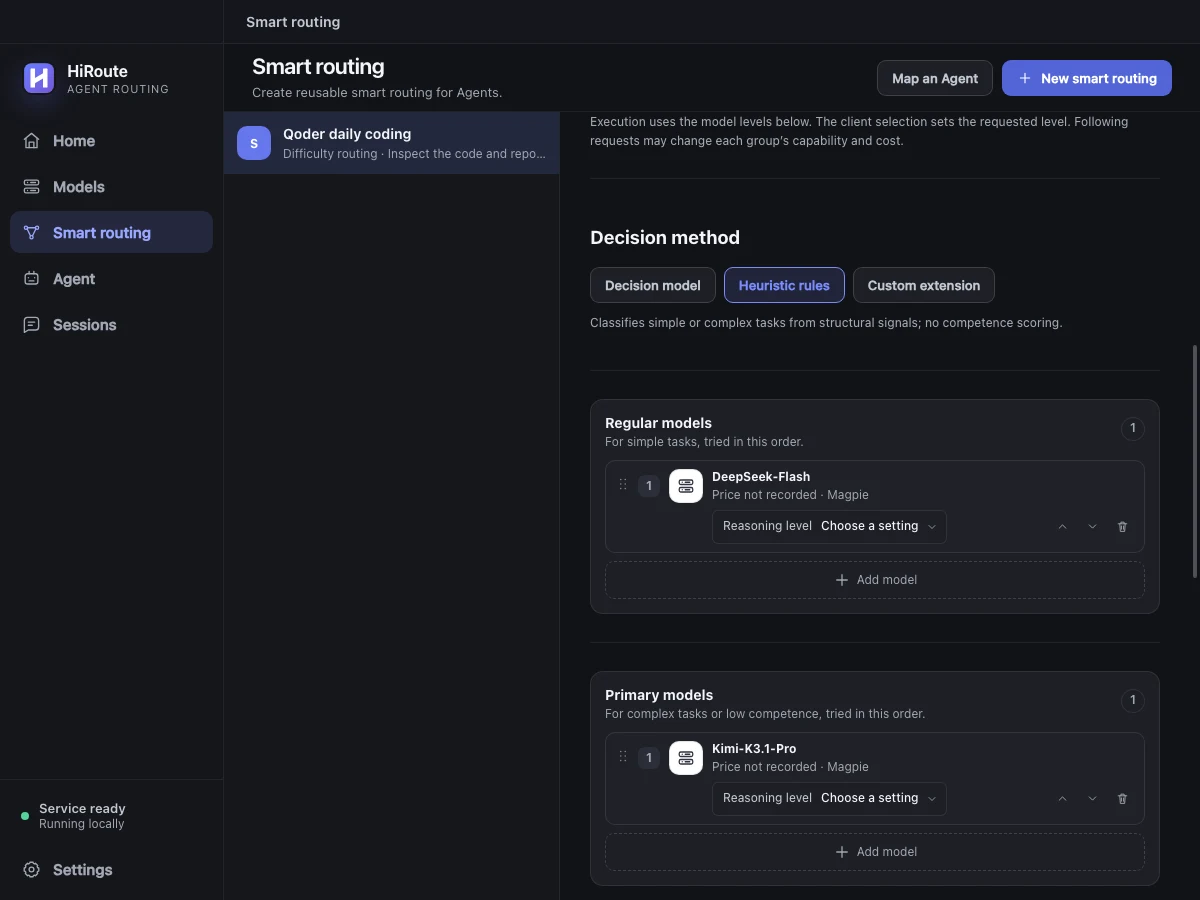
To adjust routing using execution feedback, select a decision model in the same section for stage scoring and low-score protection. Learn about difficulty decisions
3. Connect your Agent
In Agent, select DeepSeek Harness Web or DeepSeek Harness Desktop, matching the client you use. Open Model routing, check “DSH analysis” and save.
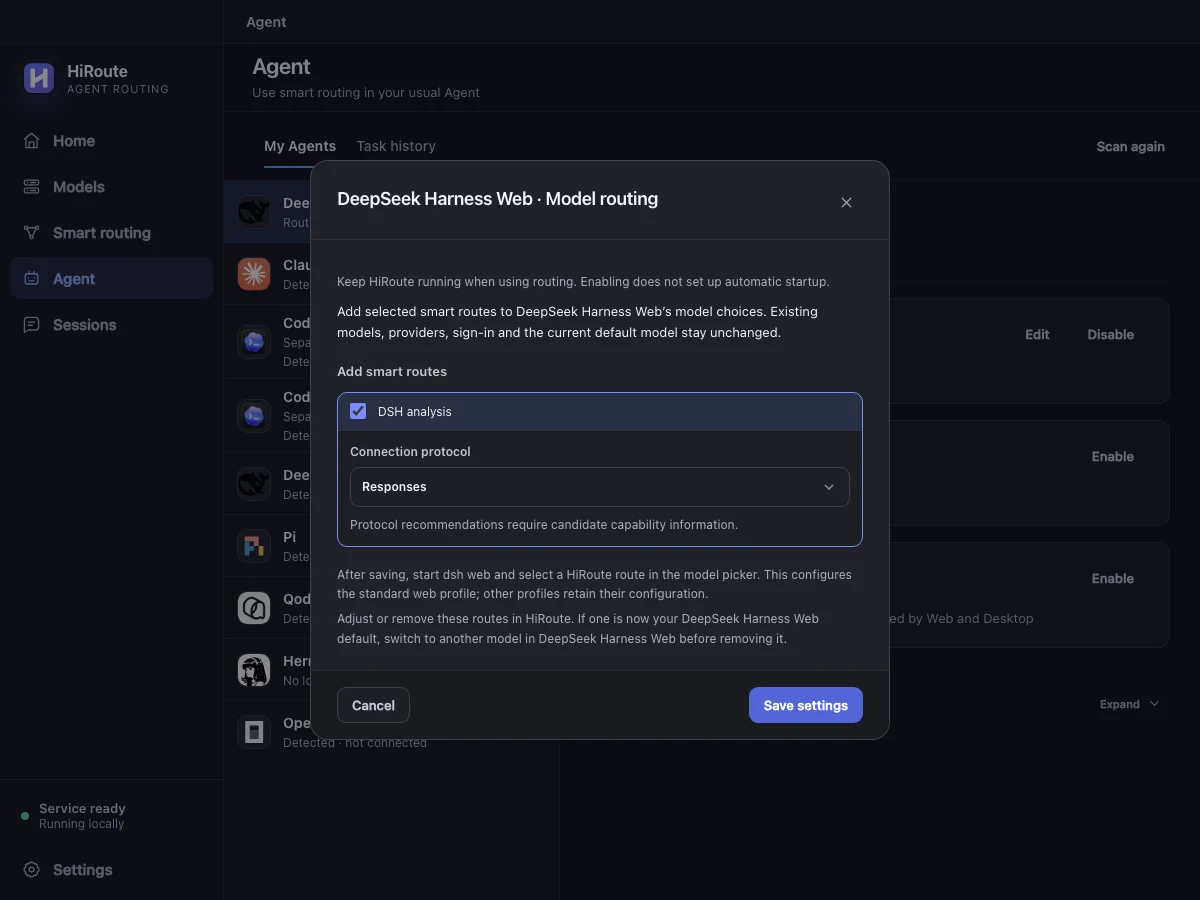
Restart that client, select the route in its model picker and try a log-analysis or code-reading task. See the models used in HiRoute's Sessions → Routing timeline. Web and Desktop have separate route settings.
Desktop profiles can keep additional plugins when the installed DeepSeek Harness Desktop supports independent provider registration. Keep the default base and Web bundles in the profile. If saving reports a missing model adapter, update DeepSeek Harness Desktop and try again.
4. Explore task delegation
When investigating a failed request in DSH, have lightweight Pi pull a timeline and status codes from the gateway logs. Pi can process the raw logs with an economical model, leaving the primary model in DSH to reason from the evidence.
Create a Fixed model route called “Pi request timeline”. Under More settings → Task delegation, allow delegation and choose Pi, describe its purpose and enable it. To delegate from DSH Web or CLI, turn on Task routing in HiRoute's DeepSeek Harness Web entry.
Use HiRoute to ask “Pi request timeline” for the timestamps, status codes and first error line for this failed request. Report in five lines or fewer.
Retrieve the summary for DSH to analyze, or hand a focused fix to a route bound to Codex CLI. Set up lightweight Pi delegation